Streamlit is the fastest way to turn a Python script into a dashboard: a few dozen lines and you have filters, charts and a table your team can use. The hard part has never been writing it. It is keeping it running somewhere other than a laptop: a server with Python on it, a process that stays up, a port, a public address. The free host most people try first puts the app to sleep when nobody visits, so the first person to open it waits for it to wake up.
Server4Agent gives the script a machine that never naps. Your assistant connects over MCP, writes app.py, installs Streamlit in a virtual environment and serves the dashboard at an address that is answering the moment someone opens it, chat or no chat.
On this page: Quick answer · The prompt · Step by step · Server size · Environment variables · Updating · Existing app · Why a persistent server fits Streamlit · Troubleshooting · FAQ
Quick answer
Five steps, all run by your AI assistant once Server4Agent is connected to it:
- Create a project on a server. A new project is an empty, private folder with its own URL.
- Write the app into that empty folder: an
app.pyand arequirements.txtwithstreamlitin it. - Install it with pip, in a virtual environment, in the background, because it can take a minute or more.
- Start it with
start_appand the commandstreamlit run app.py --server.port $PORT --server.address 0.0.0.0 --server.headless true. Streamlit does not read thePORTvariable on its own, so the port has to be passed as a flag. - Deploy it, which opens the project and returns its address on
apps.server4agent.com.
The app keeps running after the chat ends, and the same address serves every change you make later.
Key takeaways
- Streamlit does not read
PORT. Unlikenext start, it listens on its own default port unless you pass--server.port $PORT. A barestreamlit run app.pystarts fine and answers on the wrong port, so the URL never reaches it. This is the one gotcha that matters. - Run it headless. Without
--server.headless true, Streamlit tries to open a browser and asks for an email on first run. On a server there is no browser, so it stalls. - Bind to every interface.
--server.address 0.0.0.0is what lets Server4Agent's proxy reach the app. Listening on localhost only is the same failure as the wrong port. - Install in the background. Server4Agent's
execreturns output for about 20 seconds. Installing Streamlit takes longer than that, so it goes to a log file that the assistant reads until it is done. - Private by default. The URL serves nothing until you deploy, and you can keep it to your team or behind a password.
- No build step. A Streamlit app is a Python script, not a compiled bundle. Updating it is editing the file and restarting, nothing more.
The prompt to give your assistant
With Server4Agent connected to your assistant (the integrations page has the steps), paste the prompt below. It names the port flag and the headless flag up front, which saves the assistant a failed first start:
Create a Streamlit dashboard on Server4Agent and put it online.
Reuse a running server with room if I have one, otherwise create a small one.
Create a project first, then write the app into the empty project folder:
an app.py and a requirements.txt with streamlit in it.
Check python3 is available. If python3 -m venv fails, install python3-venv
with sudo apt-get. Then install the requirements into a virtual environment
in the background, with their output in a log file under /tmp, and read the
log until it finishes.
Start it with start_app and the command
streamlit run app.py --server.port $PORT --server.address 0.0.0.0 --server.headless true,
deploy it, and send me the URL.
Then ask for what you actually want: "Turn the home page into a dashboard of our weekly quotes, with a filter by salesperson," or "add a table of the open support tickets from our API." Each change follows the same loop: edit, restart.
Step by step: what happens on the server
Here is what the assistant actually calls, in order. Every call has a REST API and SDK equivalent if you would rather script it.
Step 1: a server
A small server is plenty for a dashboard. The assistant reuses one you already run if list_servers shows room, and otherwise calls create_server, then waits on get_server for the couple of minutes a new one needs to report ready.
Step 2: a project
create_project returns the project_id that every later call takes, and the listen_port that $PORT will hold when Streamlit starts. Until the deploy step, the project's address shows nothing to anyone.
Step 3: write the app
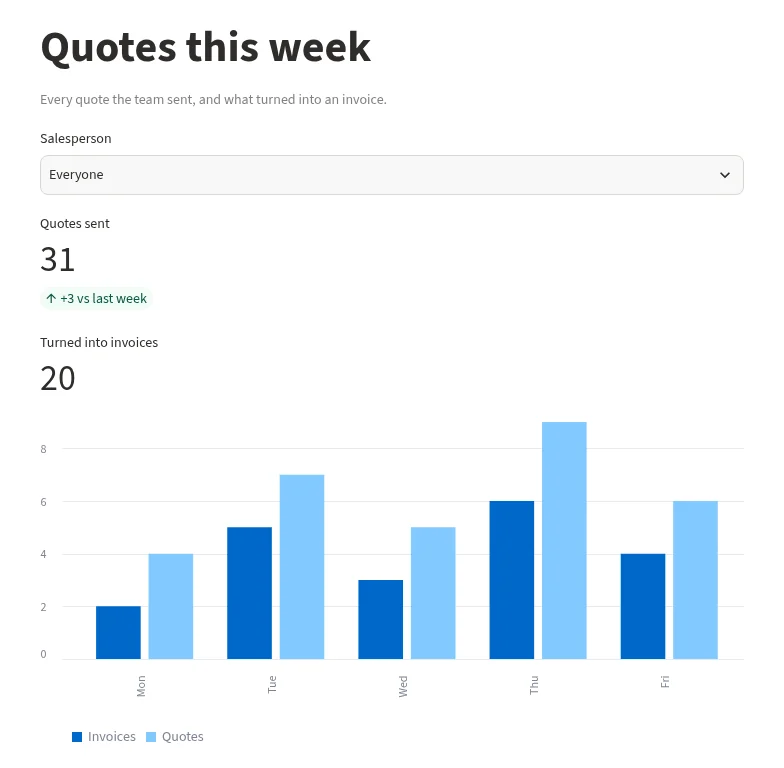
The assistant writes two files into the empty project folder with write_file. The first is the app itself. A small dashboard that needs nothing but Streamlit looks like this:
import streamlit as st

st.title("Quotes this week")
st.caption("Every quote the team sent, and what turned into an invoice.")

quotes = {"Mon": 4, "Tue": 7, "Wed": 5, "Thu": 9, "Fri": 6}
invoices = {"Mon": 2, "Tue": 5, "Wed": 3, "Thu": 6, "Fri": 4}

person = st.selectbox("Salesperson", ["Everyone", "Ana", "Ben", "Cleo"])
st.metric("Quotes sent", sum(quotes.values()), "+3 vs last week")
st.metric("Turned into invoices", sum(invoices.values()))
st.bar_chart({"Quotes": quotes, "Invoices": invoices}, sort=False, stack=False)
The second is requirements.txt, one line:
streamlitsort=False keeps the days in the order they are written, and stack=False puts the two bars side by side. Without them the chart sorts the days alphabetically and stacks the bars.
If the real app needs more, pandas or plotly for example, each goes on its own line in the same file. Keep the list to what the app imports; every extra package is install time and memory.
Step 4: install it
First a check that matters on a new server: the box ships with python3, but not with pip or the venv module. We hit that on our run on November 25: python3 -m venv failed, and so did python3 -m pip, because neither is installed. One system package fixes both, and exec can run it with sudo:
sudo apt-get update && sudo apt-get install -y python3-venvThen exec, in the project, creates a virtual environment and installs the requirements in the background, with output to a log file outside the project folder:
nohup bash -c 'python3 -m venv .venv && .venv/bin/pip install -r requirements.txt' > /tmp/streamlit-install.log 2>&1 &Then the assistant checks on it every minute or so:
tail -5 /tmp/streamlit-install.logThe install is done when the log ends with a Successfully installed line that lists streamlit. Ours brought in Streamlit 1.67 with pandas, NumPy and the rest of its dependencies in well under a minute. The virtual environment lives in the project folder, so it stays with the project and keeps its packages separate from anything else on the server.
Step 5: start it
start_app with the command:
.venv/bin/streamlit run app.py --server.port $PORT --server.address 0.0.0.0 --server.headless trueIt runs the app in the background with PORT set to the project's port, records the command so the app comes back after a restart, and waits for the port to answer. The three flags each do one job: --server.port $PORT is the port Server4Agent routes the URL to, --server.address 0.0.0.0 lets the proxy reach it, and --server.headless true stops Streamlit from trying to open a browser or ask for an email.
There is nothing else to configure. Streamlit serves the app on that port, and its own file watcher reruns the script whenever app.py changes, so small edits show up without a restart.
Step 6: deploy it
deploy checks that something is listening on the project's port, opens the project and returns its URL. The app answers with HTTP 200 straight away, and the same address keeps working after the conversation ends.
Which server size you need
Small is the right home for a Streamlit dashboard: the app is one Python process, and a small server runs it with room to spare. It is the size on the Free and Starter plans.
Medium is the safer home once the app grows: heavy data libraries, large files held in memory, several dashboards on one server. Medium comes with the Pro plan and up. See pricing.
The reason to care: if a server runs out of memory, it restarts, and every project on it goes offline for that moment. Apps started with start_app come back on their own, but a crowded small server is the wrong place for a memory-hungry app. Give it a server of its own, or a bigger one.
Environment variables and secrets
A Streamlit app that needs something private, such as a database URL or an API key, reads it from the environment while it runs. Store it as a Server4Agent secret with set_secret and attach_secret, or pass secrets to create_project. The app gets it as an environment variable when start_app starts it. Restart the app after changing one.
Secret values are write-only: no tool ever reads one back. And you never set PORT yourself. Server4Agent sets it for every app it starts, and the start command reads it through $PORT.
Updating the app
Every change follows the same two steps:
- Edit. The assistant writes the changed files with
write_file, for exampleapp.py. - Restart.
start_appagain with the same command. Calling it again is how a running app picks up the new version.
Streamlit's file watcher also reruns the script on save, so a small text change may already show up before the restart. The restart is the clean way to be sure the app is running exactly what is on disk.
A request like "add a filter by region" next week lands on the same project and the same address. When a rerun throws, Streamlit prints the traceback to the app's log, which get_logs returns.
Deploying a Streamlit app you already have
If the app already lives in a Git repository, skip writing it from scratch:
- Create the project from the repository.
create_projecttakes a git source: the URL, an optional branch, asubdirfor a monorepo, and a clone token stored as a secret for a private repository. In the dashboard this is Import from Git. - Install, start, deploy. A virtual environment and
.venv/bin/pip install -r requirements.txtin the background, thenstart_appwith the Streamlit command, thendeploy. The same steps as above, minus writing the files.
Server4Agent's on-server agent can also do the import, install and start for you, at the cost of AI credits from your plan. Running the commands yourself costs none.
Why a persistent server fits Streamlit
A Streamlit app is not a page that renders once and goes away. It holds a long-lived session open for every viewer, keeps its data in memory, and reruns the script whenever someone moves a filter. That is exactly what a serverless host is bad at: cold starts, dropped sessions, and state that evaporates between requests. The free host most people try first sleeps the app when nobody visits, so the first viewer waits for it to wake up.
A Server4Agent project is a persistent server with the app always running on it, reached through a proxy, with its files on a disk that survives restarts. The app answers at once, its sessions stay open, and its data stays in memory. For the wider trade-off between this and a serverless platform, see Vercel or a server: where should what your AI agent builds live?.
Troubleshooting
| What you see | Why | What to do |
|---|---|---|
| The URL says "Temporarily unavailable" | Nothing is listening on the project's port | Read get_logs, fix what crashed, and call start_app again |
| The app runs, but the URL never answers | Streamlit is listening on its default port, 8501, not the project's port | Start it with --server.port $PORT; Streamlit does not read PORT on its own |
| Streamlit asks for an email, or nothing happens on start | It tried to open a browser on first run | Add --server.headless true to the start command |
exec returns with no output | The command is still running past about 20 seconds | Run it in the background with output to a log file, then read the log |
ModuleNotFoundError: streamlit | The install did not finish, or the app started from the wrong Python | Check the install log, then start it from the virtual environment's streamlit |
python3 -m venv fails, or No module named pip | The server ships python3 without venv or pip | Run sudo apt-get update && sudo apt-get install -y python3-venv, then create the virtual environment again |
| The URL lands on "Nothing found" | The project is still private | Call deploy |
| Changes do not show | The app is still serving the previous version | Call start_app again with the same command to restart on the new files |
FAQ
Can I host a Streamlit app on Server4Agent?
Yes. A Server4Agent project runs Streamlit the way its own documentation describes for a server: streamlit run with the port and address passed as flags, serving at a live URL on apps.server4agent.com.
Which Python version do I need?
Whatever the server has, as long as it can install the Streamlit version in requirements.txt. The assistant checks python3 --version before installing. Streamlit needs Python 3.9 or later.
How long does it take?
A new server takes about two minutes to be ready. The rest is the install, which depends on how many packages the app needs, and then the app starts in seconds.
Do I need to configure the port or hostname?
No hostname, and no port setting of your own. Server4Agent sets PORT for the app, and the start command passes it to Streamlit with --server.port $PORT. Listening on 0.0.0.0 is the only address setting, and it is in the command.
Does the app keep running after the conversation ends?
Yes, and it does not sleep when nobody visits. The streamlit run command is saved with the project, so the dashboard starts again by itself after a server restart or a resume.
Is the app public as soon as it is deployed?
Only if you want it to be. Deploying opens the address, and you can then limit the dashboard to your team's Server4Agent sign-ins or put a password on it, which suits internal data.
Can I deploy a Streamlit app I already have?
Yes. Import its Git repository, a monorepo subfolder or a private repository with a clone token, install its requirements.txt into a virtual environment, and start it with the same streamlit run flags.
Does it work with pandas, Plotly, and the rest of the data stack?
Yes. Put each package on its own line in requirements.txt and install it the same way. Heavy libraries take longer to install and use more memory, so a growing app belongs on a medium server.
How is this different from Streamlit Community Cloud?
Community Cloud hosts Streamlit apps for free and puts them to sleep when nobody visits. A Server4Agent project is a persistent server: the app stays running, answers at once, and can be private, team-only, password-protected, or on your own domain.
Related reading
- How to create and deploy a Next.js app on Server4Agent
- Your AI assistant wrote the code. How do you put it online?
- Vercel or a server: where should what your AI agent builds live?
- Private by default: reviewing agent-built software before you ship it
- Share an internal tool with your team without putting it on the internet
- Quickstart: zero to a live URL, one step at a time.
External references
- Streamlit, the framework's home page
- Streamlit documentation, including the command-line interface