Your assistant built the tool, it works, and the link is tide-tracker-k2.apps.server4agent.com. That is fine for a quick look. It is less fine on a slide, in an email to a customer, or on the back of a business card.
Now a project can answer at a domain you own as well, like app.yourcompany.com, over HTTPS, with the certificate handled for you.
Quick answer
Open the project, go to Settings, and add your domain under Custom domain. You get two DNS records to create at whoever manages your domain: a CNAME that sends visitors to the project, and a TXT record that proves the domain is yours. Press Check DNS. Once both records are found, the certificate is issued, usually within a minute or two, and the domain goes live.
Custom domains are on paid plans. Solo includes 2, Starter 3, Pro 10 and Business 30. The domain serves the project once it is published, the same as its own address.
What the two records do
The CNAME points your domain at the project's own address. It is what makes app.yourcompany.com reach your app.
The TXT record is the proof. It lives at _server4agent.app.yourcompany.com and holds a value only you were shown. Pointing a domain at us is not enough to claim it, on purpose: if it were, a CNAME left behind after you deleted a project could be picked up by whoever made a project with the same name next. That is how subdomain takeovers happen, and the TXT record is what rules it out.
Both are checked before anything is switched on. Once a domain is verified, it belongs to that project until you remove it, and nobody else can claim it.
Setting it up
- Open the project and go to Settings.
- Under Custom domain, type the domain, for example
app.yourcompany.com, and press Add domain. - Copy the two records into your DNS provider. Each value has a copy button, because the usual mistake is a typo in a long string.
- Press Check DNS. If a record is missing or wrong, the panel says which one and what it should be.
DNS changes can take a few minutes to spread, sometimes longer. A check that comes back "Waiting for DNS" right after you saved the records is normal. Check again a little later.
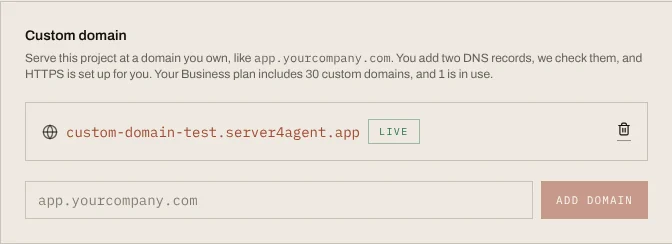
The domain serves only while the project is published, the same as its own address. You can add and verify a domain while the project is still private: it waits, ready, and goes live the moment you deploy.
Root domains
A root domain like yourcompany.com cannot hold a CNAME at most DNS providers. You have two options:
- Use your provider's ALIAS, ANAME or CNAME flattening setting with the same value. The check accepts it.
- Put the app on a subdomain such as
wwworappinstead, which is simpler and works everywhere.
If your DNS provider can proxy traffic (an orange cloud, for example), turn the proxy off for this record. The certificate is issued by proving the domain answers here, and a proxy in front gets in the way.
What visitors see
The app, at your domain, over HTTPS. HTTP is redirected to HTTPS. The project's own address keeps working too, so links you have already shared do not break.
Who can open it carries over too. A published project can be open to anyone with the link, limited to your team, or behind a password, and your domain follows the same setting. A colleague who opens app.yourcompany.com signs in and lands back on app.yourcompany.com, not on our address.
One small difference: the project's own address tells search engines not to index it, because it sits on our domain. Your domain does not, because it is yours, and you probably want it found.
Doing it from your assistant
If you work through your assistant rather than the dashboard, ask for it in plain English:
Put the tide tracker on app.yourcompany.com.
The assistant calls add_domain, tells you the two records to create, and calls check_domain once you have added them. remove_domain disconnects one. The same is available in the REST API under /api/projects/{id}/domains and in the TypeScript SDK as project.domains. See the MCP guide for the tool signatures.
FAQ
How long does it take?
Once DNS has spread, a minute or two for the certificate. Most of the wait is DNS, which depends on your provider.
Do I have to renew the certificate?
No. It is renewed automatically before it expires. If renewal ever fails, for example because the CNAME was changed to point somewhere else, the project's settings say so and what to fix.
Can one project have more than one domain?
Yes, for example both yourcompany.com and www.yourcompany.com. Each one counts toward your plan's allowance.
What happens if I downgrade?
Domains you already have keep working. You just cannot add more until you are back under the new plan's allowance.
Can I remove a domain?
Yes, from the same panel. The app stops answering there and the certificate is removed. Your DNS records stay at your provider until you delete them, so delete them too.
Is it on the free plan?
No. The free plan keeps the project's own address with HTTPS. Custom domains start with Solo at $19 a month.
Related reading
- Share an internal tool with your team without putting it on the internet
- Why every AI agent should return a URL
- What is an MCP server in AI