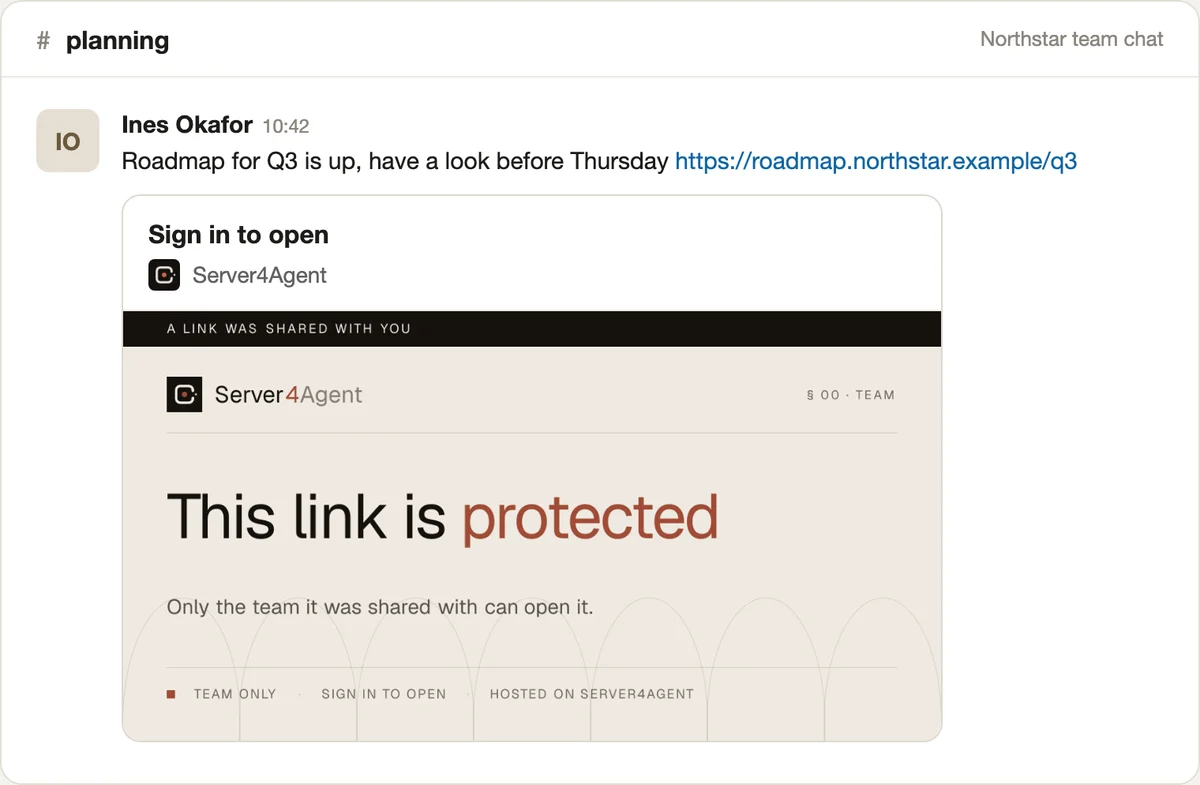
You put the Q3 roadmap behind a team sign-in, connected roadmap.northstar.example to it, and pasted the link into the team channel. The chat app fetched the link, met the sign-in, and built its preview from what it found there: a card that says "Sign in to open", with our name and our logo on it.
The link was yours. The preview was ours.
On Pro and up, it can be yours too. A project limited to a team or behind a password can now carry its own link preview: your name, your icon, your title and description, and a picture, either one you upload or one drawn for you from the rest.
Quick answer
Open the project, go to Settings, and fill in Link preview: a name, an icon, a title, a short description, and either your own picture or one drawn from your icon and text. Press Save preview. From then on, when the link is pasted into Slack, Microsoft Teams, WhatsApp, iMessage or any other app that shows link previews, it unfurls as your brand instead of the standard "This link is protected" card.
It works the same on the project's own address and on every custom domain connected to it. It is on the Pro, Business and Enterprise plans.
Key takeaways
- It is for projects limited to your team or behind a password. A project open to everyone shows whatever preview your app itself sets.
- You set a name, an icon, a title, a description, a picture and an accent color, once per project.
- Who can open the link does not change. The sign-in and the password work exactly as before.
- Anyone who has the link sees the preview before they sign in, so it says only what you are happy for them to read.
- If the plan changes, the standard card comes back and your settings are kept for when you upgrade again.
Before and after
Here is the roadmap link from the opening, pasted into a team chat, first with the standard card:
And the same link once the project has a link preview:
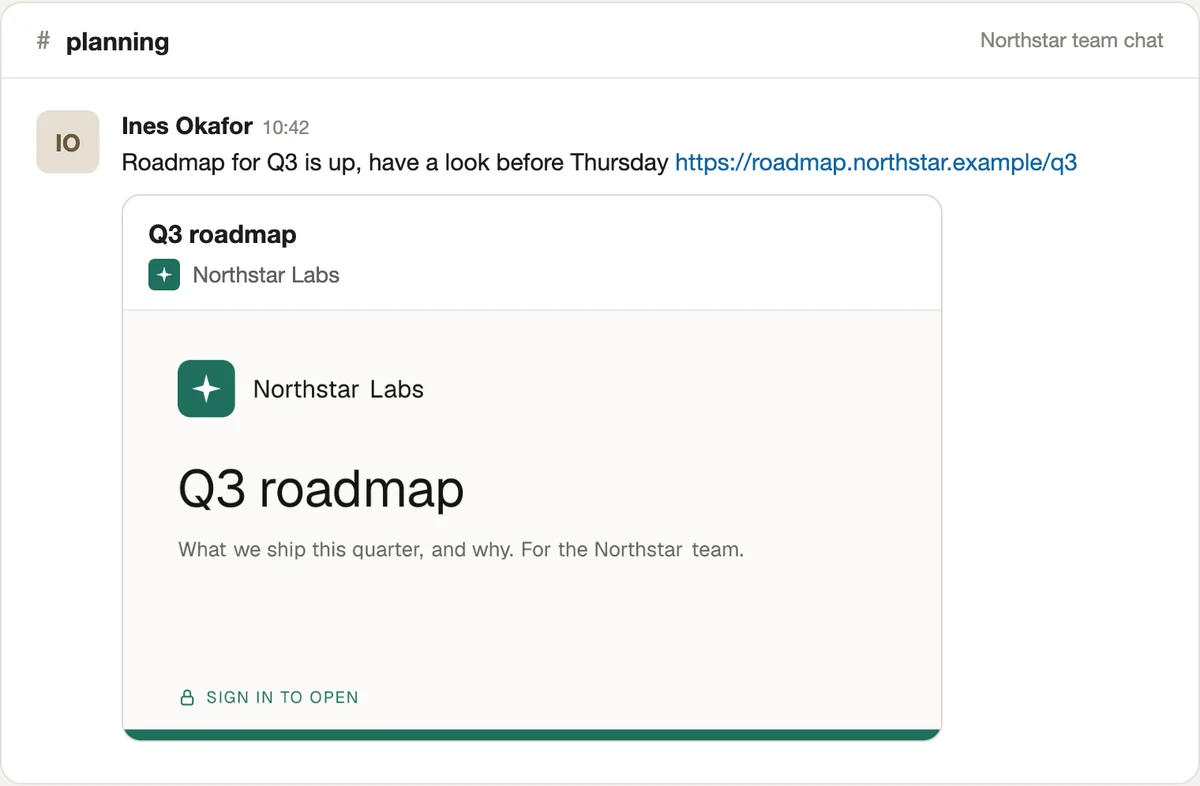
Northstar Labs is a made-up team and roadmap.northstar.example a made-up domain, but the card is the real one: the picture and the tags behind it are what the project served to a link preview bot.
Why the preview used to be ours
A chat app builds a preview by fetching the link the way a browser would, without being signed in to anything. A public project answers with its own page, so the preview is whatever that page says about itself. A protected project cannot do that. Its content is exactly what the chat app is not allowed to see, so the request goes to the sign-in step or the password prompt instead, and the preview is built from that.
That step deliberately says nothing about the project. Someone who guesses a link should not learn whose it is, what it is called, or even that it exists. So the card was generic, and because the sign-in step is ours, it carried our name.
A link preview changes what that step tells a chat app. With one set up, the tags a chat app reads (the site name, the icon, the title, the description and the picture) are yours. Nothing of ours is left in them, not even the address, so the app keeps showing the link that was pasted.
Setting it up
- Open the project and go to Settings.
- Under Link preview, leave Use your branding ticked.
- Upload an icon. Any picture your browser can open will do: it is cropped square and resized before it uploads. Without one, the preview uses the first letter of your name on your accent color.
- Fill in a name, a title and a description of up to 200 characters. The name is what a chat app shows where it would show a site's name, next to the icon.
- Choose the picture. Draw it from my icon and text makes a clean card from what you just typed. Use my own image takes a picture of your own, cropped to 1200 × 630, the size chat apps expect.
- Press Save preview.
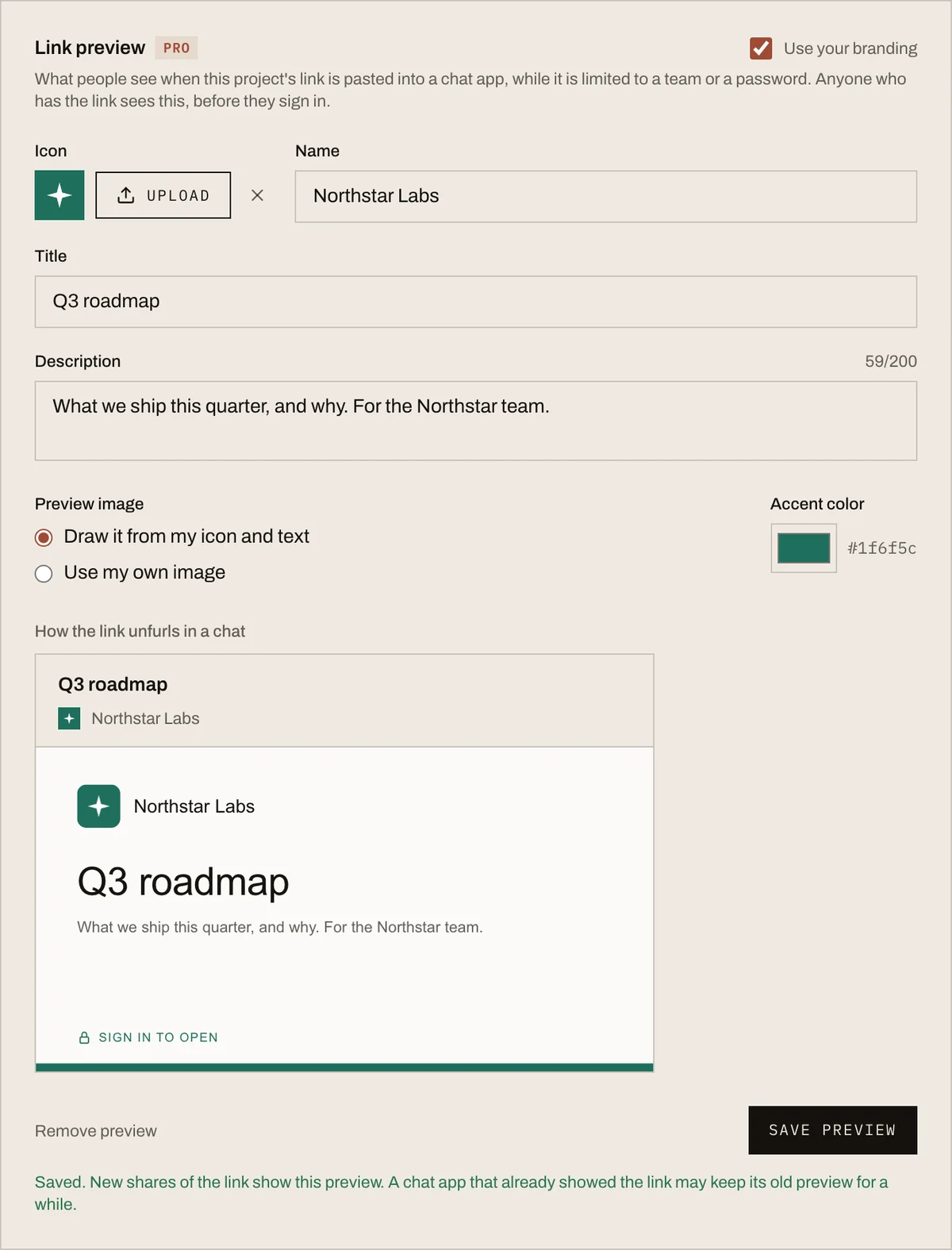
The drawn picture says whether the link needs a sign-in or a password, because that is the one thing a reader needs to know before they click.
With your own domain
A custom domain and a link preview do two halves of the same job. The domain puts your name in the address: people open roadmap.northstar.example, sign in, and land back on roadmap.northstar.example, not on our address. The link preview puts your name on the card people see before they click.
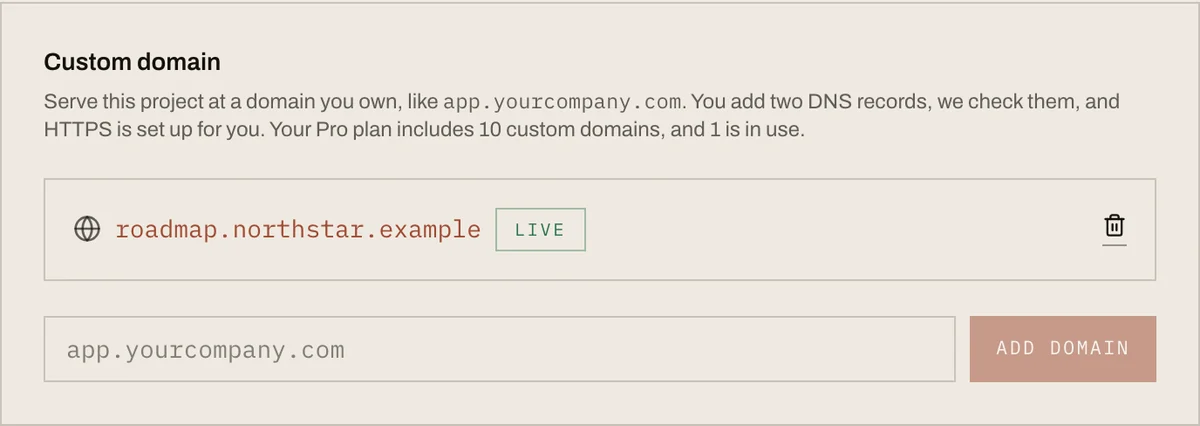
You set the preview once per project, and it follows every address the project answers at. If you have not connected a domain yet, putting the app on your own domain walks through the two DNS records.
Who sees it, and when
- Anyone who has the link. A preview is shown before anyone signs in, which is the point of one. Treat the title and description like the outside of an envelope: they can say what is inside, not what it says.
- Never for a private project. A project that is not published answers exactly like a link that does not exist, and a branded card would tell the two apart. The preview starts showing when you publish the project with a team or password limit.
- Not for a project open to everyone. Its link reaches your app, so the preview is whatever your app sets in its own page.
- Only while it is on and your plan includes it. Untick Use your branding, remove the preview, or move to a plan without it, and the link shows the standard card again.
Chat apps remember previews
Chat apps keep a link's preview for a while rather than fetching it every time someone scrolls past. A link that was posted before you saved may keep its old card in that conversation. Posting the link again, or posting it somewhere new, usually brings up the new one.
Each save also gives the picture a new address, so an app that fetches the link again gets the new picture rather than a stored copy of the old one.
FAQ
Which plans include custom link previews?
Pro, Business and Enterprise. Free, Solo and Starter show the standard protected-link card, which names no project at all.
Does a link preview change who can open the link?
No. It changes what a chat app shows about the link. Team members still sign in, and a password-protected link still asks for the password.
Does it work for password-protected projects?
Yes. The drawn picture says "Password required" instead of "Sign in to open", and everything else is the same.
Do I need a custom domain?
No. The preview works on the project's own address too. A custom domain just means the address people see is yours as well.
What pictures can I upload?
Anything your browser can open. Icons are cropped to a 256 pixel square and pictures to 1200 × 630 before they upload, so what is stored is always the size chat apps expect.
Can my assistant set it up?
It is a setting in the dashboard. You set it once, and it is easier to get right while you can see the card.
Does the page people land on after clicking change too?
Not yet. The preview is what changes. The sign-in and password steps look the same as before.
Related reading
- Put the app your assistant built on your own domain
- Share an internal tool with your team without putting it on the internet
- Private by default: reviewing agent-built software before you ship it
- Why every AI agent should be able to return a URL
- Plans and pricing